> ## Documentation Index
> Fetch the complete documentation index at: https://meganharrisonconsulting.mintlify.site/llms.txt
> Use this file to discover all available pages before exploring further.

# Create a Prime Contract

> A Prime Contract records the agreement between the project and its owner. It is the ***financial starting point for the owner-facing construction lifecycle.***

The prime contract defines the agreed scope and value, supports owner billing, and keeps approved changes connected to the original agreement history.

## Watch the walkthrough

<video controls preload="metadata" className="w-full">
  <source src="https://mintcdn.com/meganharrisonconsulting/RZ5oohlr-a30ylcg/images/help/training-docs/create-a-prime-contract/create-a-prime-contract.mp4?fit=max&auto=format&n=RZ5oohlr-a30ylcg&q=85&s=717a15be6447a138d1f30dafee054c13" type="video/mp4" data-path="images/help/training-docs/create-a-prime-contract/create-a-prime-contract.mp4" />

  <source src="https://mintcdn.com/meganharrisonconsulting/RZ5oohlr-a30ylcg/images/help/training-docs/create-a-prime-contract/create-a-prime-contract.webm?fit=max&auto=format&n=RZ5oohlr-a30ylcg&q=85&s=be4cc89d30af6a6f3e2f7ba81ab556a6" type="video/webm" data-path="images/help/training-docs/create-a-prime-contract/create-a-prime-contract.webm" />

  Your browser does not support the walkthrough video.
</video>

## Create the prime contract

<Steps>
  <Step title="Open the Prime Contracts Tool">
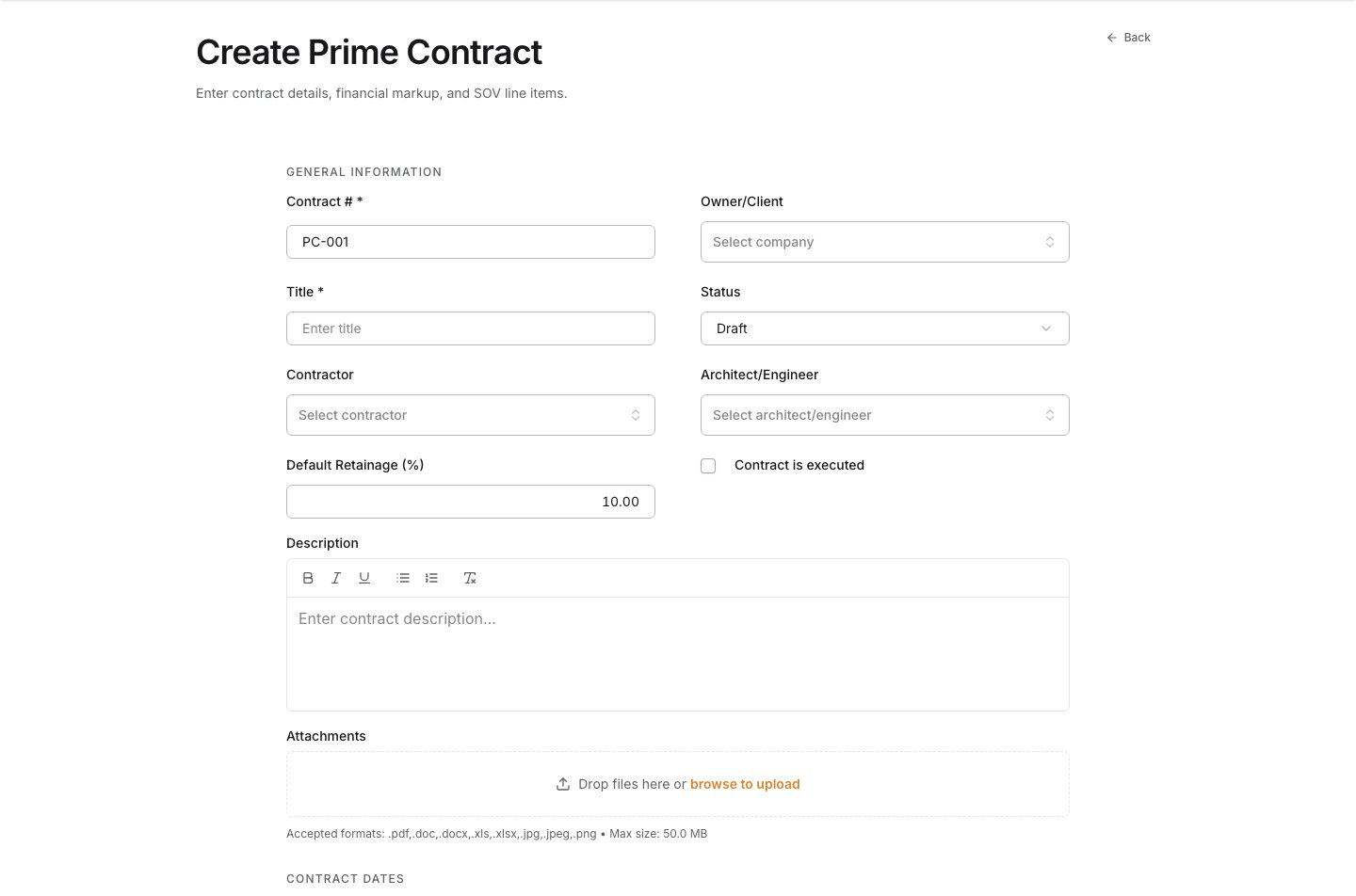
    In the project, open the [**Prime Contracts Tool**](https://projects.alleatogroup.com/prime-contracts) from the sidebar or the tools dropdown in the header. Select **Create** to open the **Create Prime Contract** form.

    <Frame>
      <img src="https://mintcdn.com/meganharrisonconsulting/SLCGzXWjgXwgIs6m/images/help/training-docs/create-a-prime-contract/01-open-the-new-prime-contract-form.png?fit=max&auto=format&n=SLCGzXWjgXwgIs6m&q=85&s=c5390b31ec3b511cfaee3b48b02b7d56" alt="The Create Prime Contract form with General Information visible" width="1440" height="952" data-path="images/help/training-docs/create-a-prime-contract/01-open-the-new-prime-contract-form.png" />
    </Frame>
  </Step>

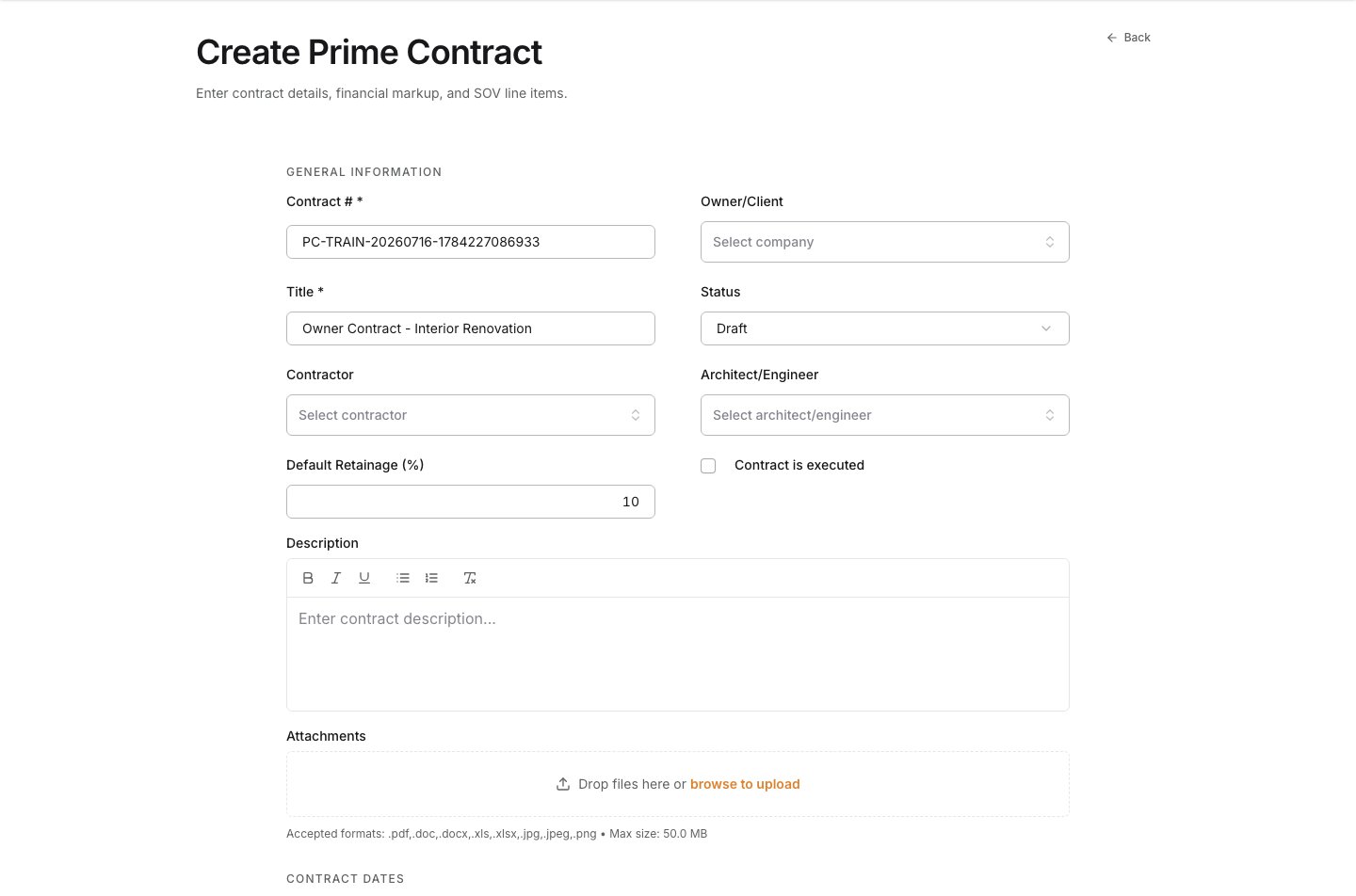
  <Step title="Enter the prime contract number and title information">
    | Field          | What to enter                                                                             |
    | -------------- | ----------------------------------------------------------------------------------------- |
    | **Contract #** | Accept the default number, or enter the number your team uses to identify this agreement. |
    | **Title**      | A descriptive name that makes the contract easy to recognize in billing and reporting.    |

    <Frame>
      <img src="https://mintcdn.com/meganharrisonconsulting/SLCGzXWjgXwgIs6m/images/help/training-docs/create-a-prime-contract/02-fill-out-the-contract-details.png?fit=max&auto=format&n=SLCGzXWjgXwgIs6m&q=85&s=edc91a0cce0a096d29f6369f27d6294f" alt="Contract number, title, and retainage fields on the Create Prime Contract form" width="1440" height="952" data-path="images/help/training-docs/create-a-prime-contract/02-fill-out-the-contract-details.png" />
    </Frame>
  </Step>

  <Step title="Confirm the Owner, Contractor, and Architect/Engineer.">
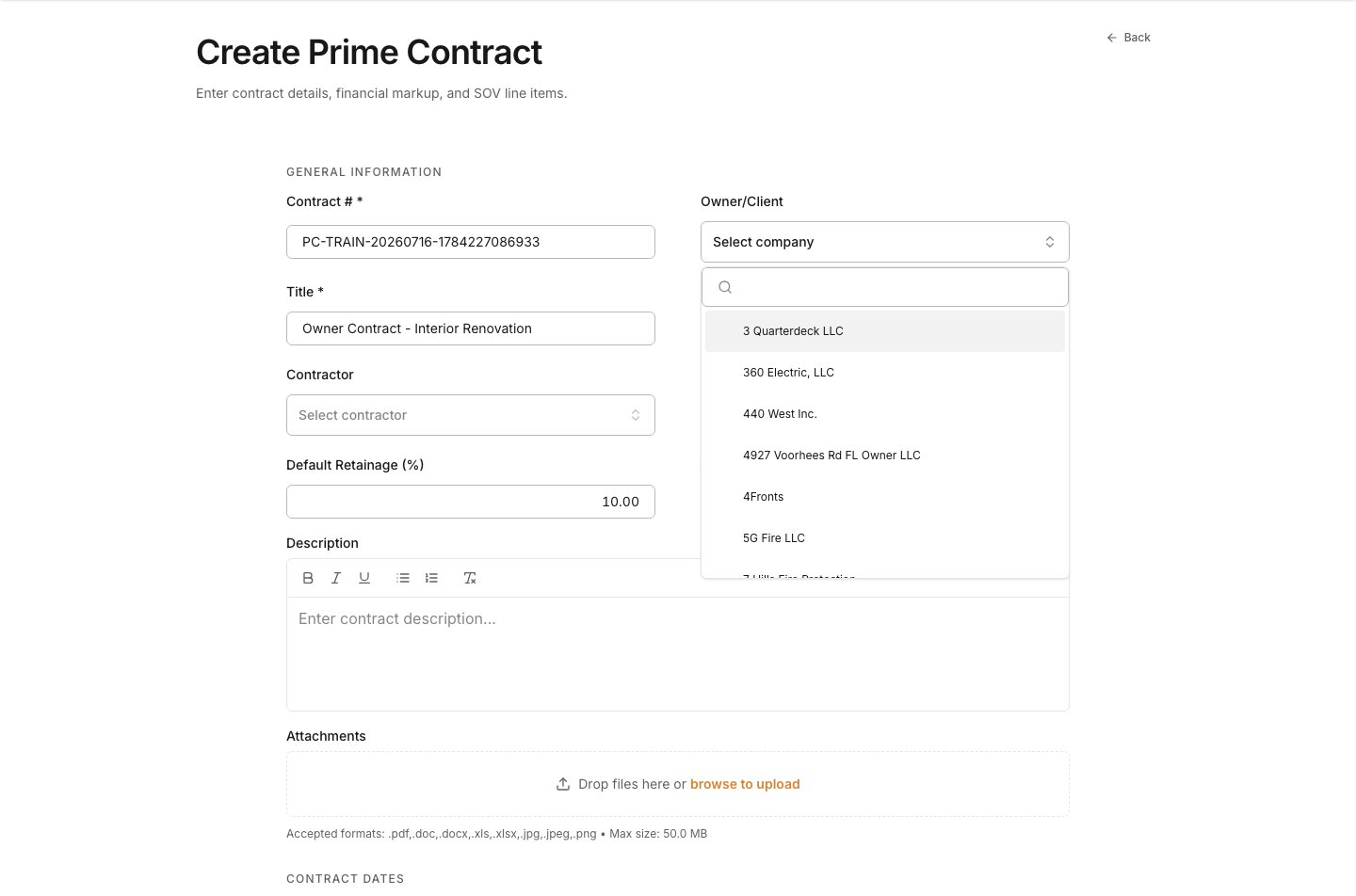
    Click the dropdown to select the **Owner/Client**. If tghe company has n olt been added contact the accounting department to set up the company credentials. This field is not required to crfeate the contract and can be edited later.

    | Field                  | What to enter                                                     |
    | ---------------------- | ----------------------------------------------------------------- |
    | **Owner/Client**       | The project owner or client executing the owner-facing agreement. |
    | **Contractor**         | The company managing the contracted work, when applicable.        |
    | **Architect/Engineer** | The lead design professional, when applicable.                    |

    <Frame>
      <img src="https://mintcdn.com/meganharrisonconsulting/SLCGzXWjgXwgIs6m/images/help/training-docs/create-a-prime-contract/03-open-the-owner-client-choices.png?fit=max&auto=format&n=SLCGzXWjgXwgIs6m&q=85&s=47e530e0f1d7719af746497954940c68" alt="Open Owner Client menu showing available project companies" width="1440" height="952" data-path="images/help/training-docs/create-a-prime-contract/03-open-the-owner-client-choices.png" />
    </Frame>
  </Step>

  <Step title="Confirm the status">
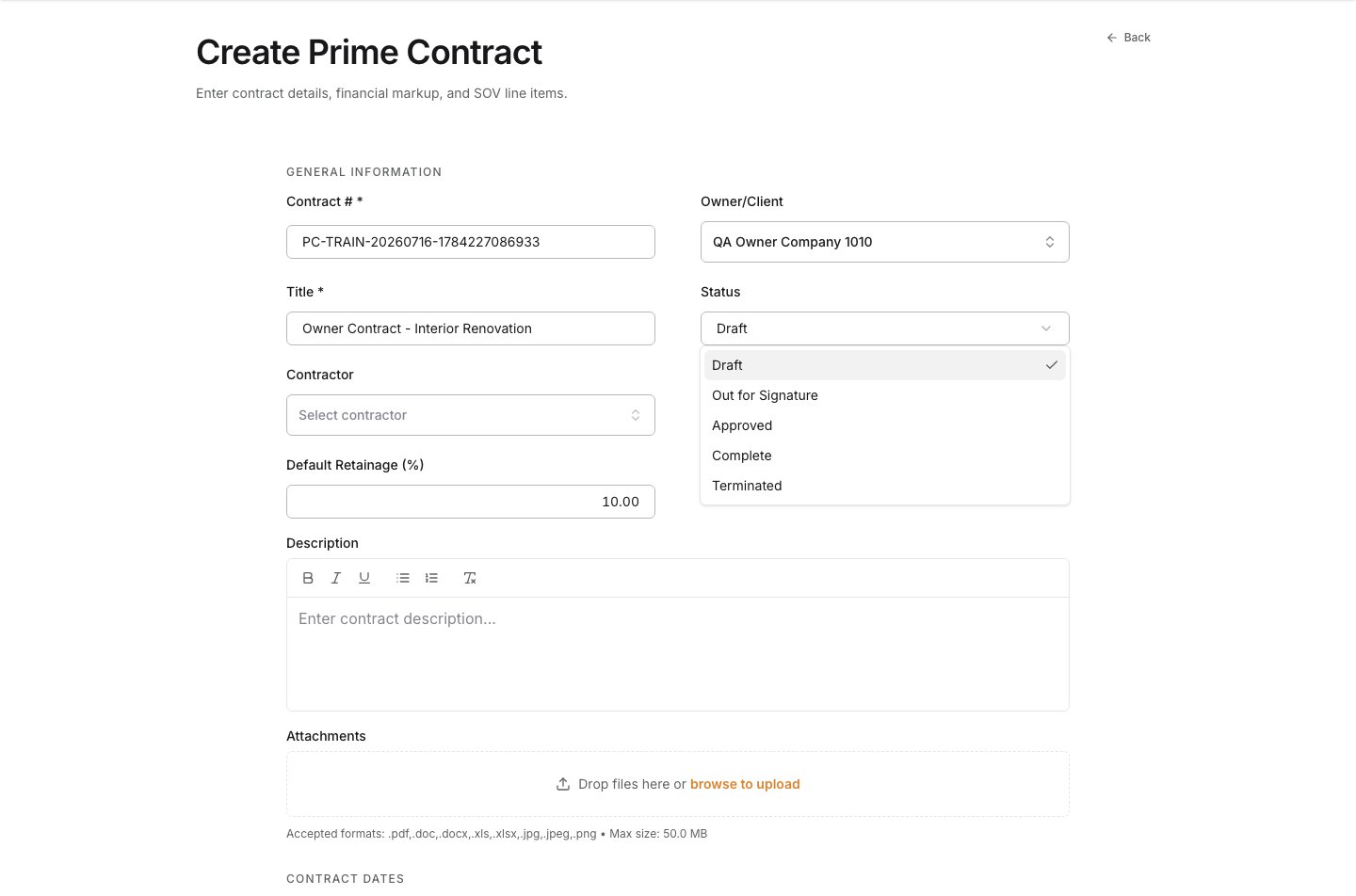
    Open **Status** to review the available lifecycle states. Use **Draft** while the SOV or supporting information is still under review. Move the agreement forward only when it is ready for your approval and billing controls.

    | Field                    | What to enter                                                                                                                                                                                                                                                              |
    | ------------------------ | -------------------------------------------------------------------------------------------------------------------------------------------------------------------------------------------------------------------------------------------------------------------------- |
    | **Status**               | Start in **Draft** while the contract and SOV are under review. Available states: **Draft**, **Out for Signature**, **Approved**, **Complete**, **Terminated**. A contract must be **Approved** or **Complete** before it can be used for change orders or owner invoices. |
    | **Contract is executed** | Select after all required parties have signed.                                                                                                                                                                                                                             |

    <Frame>
      <img src="https://mintcdn.com/meganharrisonconsulting/SLCGzXWjgXwgIs6m/images/help/training-docs/create-a-prime-contract/05-open-the-contract-status-choices.png?fit=max&auto=format&n=SLCGzXWjgXwgIs6m&q=85&s=066a13b4e71c194827d0e7a2914adfc5" alt="Open Status menu on the prime contract form" width="1440" height="952" data-path="images/help/training-docs/create-a-prime-contract/05-open-the-contract-status-choices.png" />
    </Frame>
  </Step>

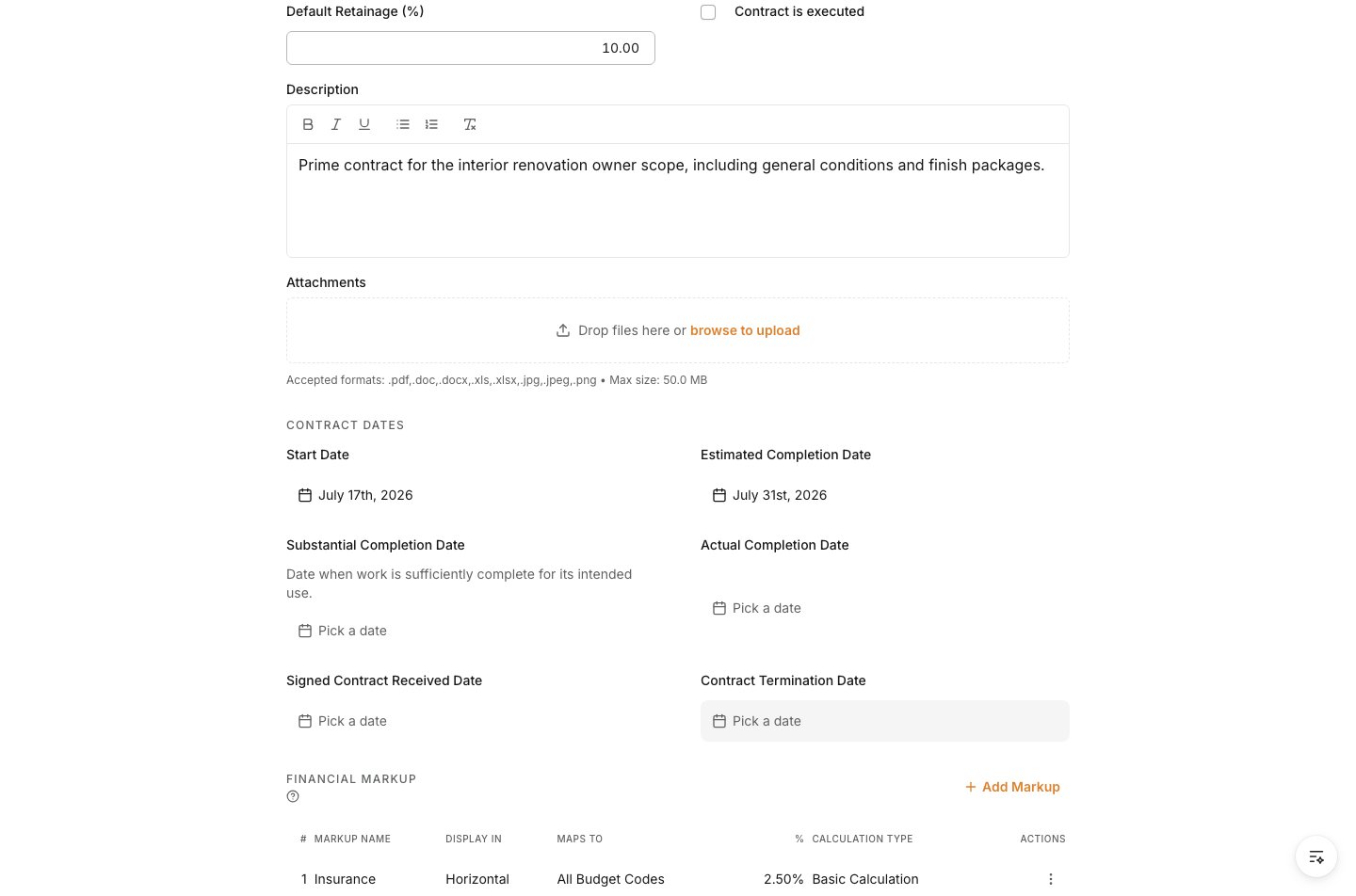
  <Step title="Complete the remaining fields">
    Add a concise **Description** so the project team understands the owner-facing purpose and scope. Upload supporting documents if needed.

    | Field                 | What to enter                                                                     |
    | --------------------- | --------------------------------------------------------------------------------- |
    | **Default Retainage** | The retainage percentage to apply to SOV line items — e.g. `10` for 10%.          |
    | **Description**       | The owner-facing purpose and scope of the agreement.                              |
    | **Attachments**       | The signed agreement, exhibits, or other contract files to keep with this record. |
  </Step>

  <Step title="Update the relevant dates.">
    | Date                                           | When to use                                              |
    | ---------------------------------------------- | -------------------------------------------------------- |
    | **Start Date** / **Estimated Completion Date** | Establish the planned contract timeline.                 |
    | **Substantial Completion Date**                | When work is sufficiently complete for its intended use. |
    | **Actual Completion Date**                     | When the work is complete.                               |
    | **Signed Contract Received Date**              | When the executed agreement was received.                |
    | **Contract Termination Date**                  | Only if the agreement is terminated.                     |

    <Frame>
      <img src="https://mintcdn.com/meganharrisonconsulting/SLCGzXWjgXwgIs6m/images/help/training-docs/create-a-prime-contract/08-set-the-contract-dates.png?fit=max&auto=format&n=SLCGzXWjgXwgIs6m&q=85&s=5e8cc9394633acef4f9f2114d601d535" alt="Start Date and Estimated Completion Date fields on the prime contract" width="1440" height="952" data-path="images/help/training-docs/create-a-prime-contract/08-set-the-contract-dates.png" />
    </Frame>
  </Step>

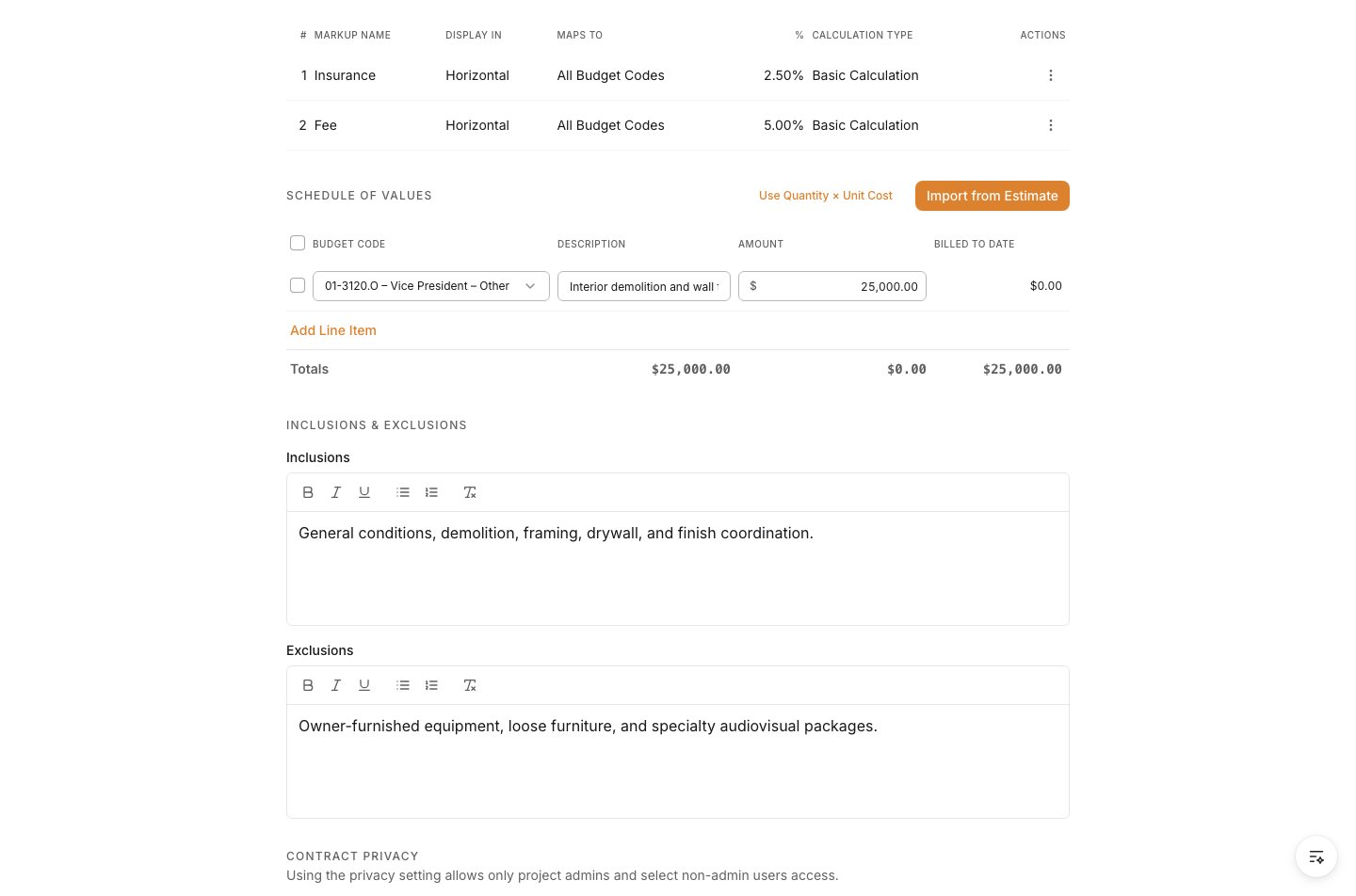
  <Step title="Clarify included and excluded scope">
    Record **Inclusions** and **Exclusions** whenever the agreement needs explicit boundaries. This prevents scope assumptions from being confused with contracted work when invoices or changes are reviewed later.

    | Field          | What to enter                                               |
    | -------------- | ----------------------------------------------------------- |
    | **Inclusions** | The work, materials, or services included in the agreement. |
    | **Exclusions** | The work, materials, or services not included.              |

    <Frame>
      <img src="https://mintcdn.com/meganharrisonconsulting/SLCGzXWjgXwgIs6m/images/help/training-docs/create-a-prime-contract/12-define-inclusions-and-exclusions.png?fit=max&auto=format&n=SLCGzXWjgXwgIs6m&q=85&s=3e899b9b47960fd3500d60eca583f52a" alt="Inclusions and Exclusions fields populated on the prime contract" width="1440" height="952" data-path="images/help/training-docs/create-a-prime-contract/12-define-inclusions-and-exclusions.png" />
    </Frame>
  </Step>

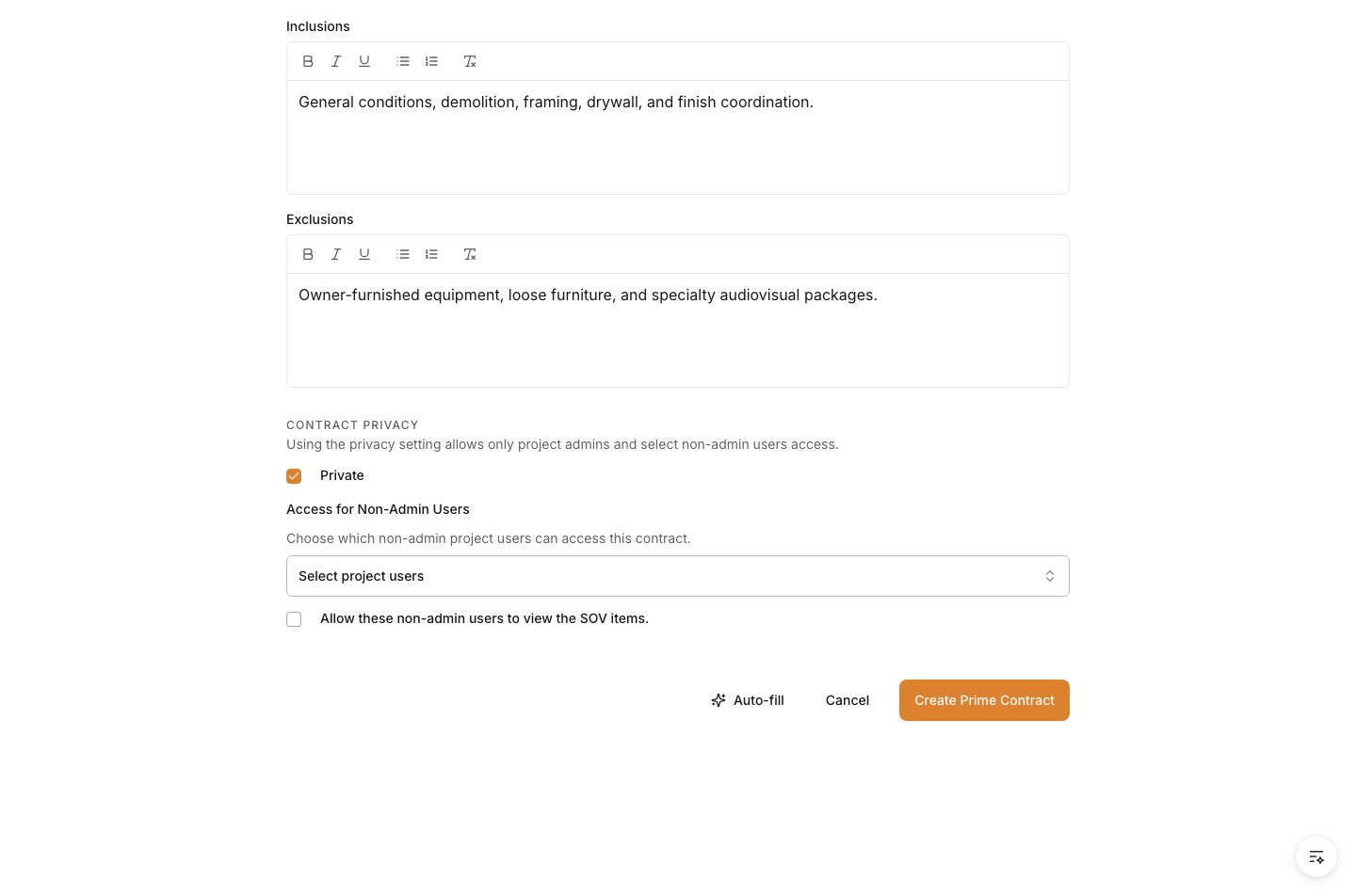
  <Step title="Apply privacy rules">
    Turn on **Private** when only project admins and specifically selected non-admin users should access the contract. Leave it off when the project team's normal access model is appropriate.

    When the contract is private, select the permitted project users in **Access for Non-Admin Users**. Select **Allow these non-admin users to view the SOV items** only for users who also need the contract's line-item values.

    <Frame>
      <img src="https://mintcdn.com/meganharrisonconsulting/SLCGzXWjgXwgIs6m/images/help/training-docs/create-a-prime-contract/13-set-contract-privacy.png?fit=max&auto=format&n=SLCGzXWjgXwgIs6m&q=85&s=894d577650ac87c4af0971ff7925a83b" alt="Private contract setting enabled with non-admin access control available" width="1440" height="952" data-path="images/help/training-docs/create-a-prime-contract/13-set-contract-privacy.png" />
    </Frame>
  </Step>

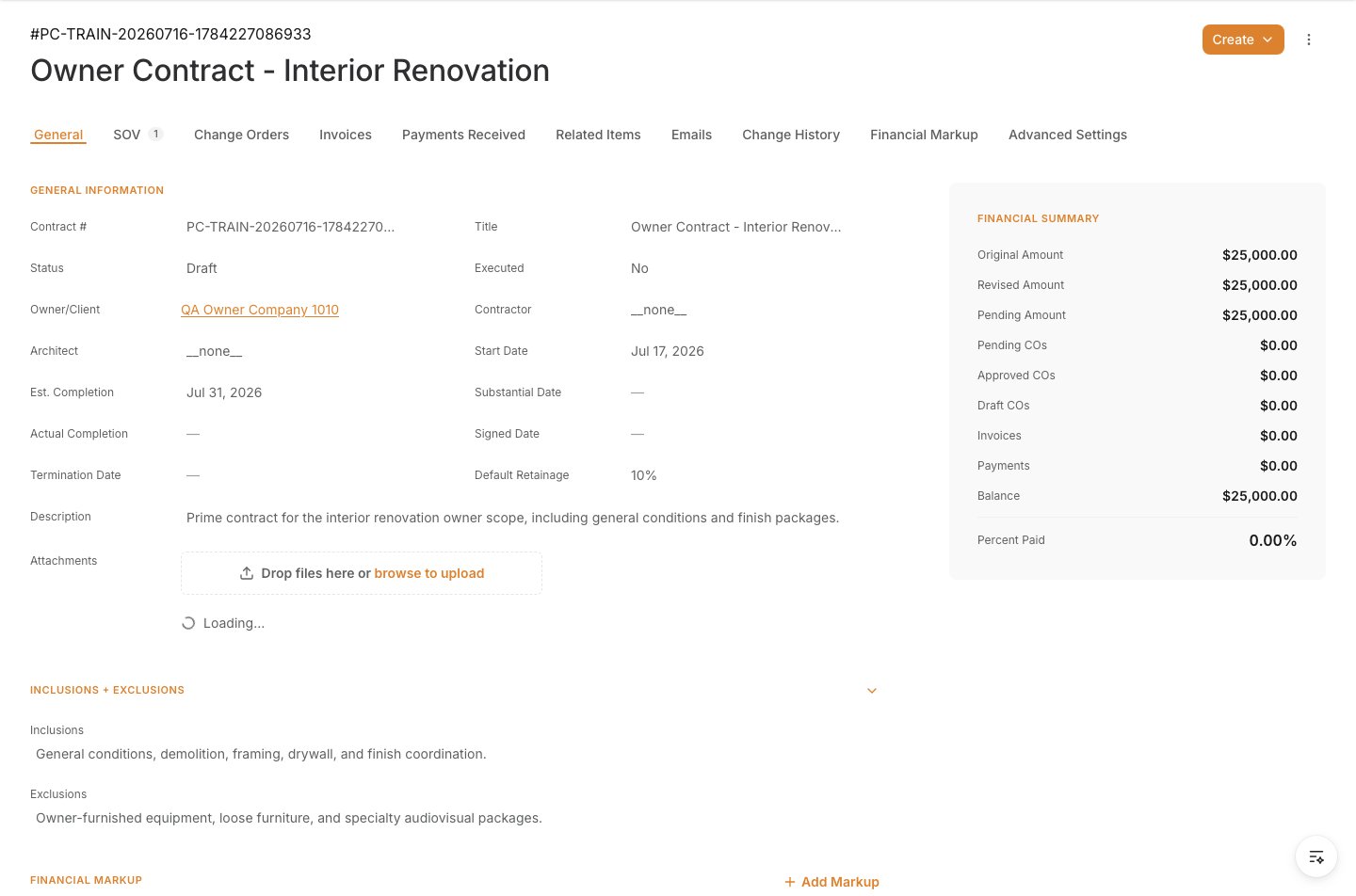
  <Step title="Create and verify the agreement">
    Select **Create Prime Contract**. The saved agreement opens on its detail page. Confirm the contract identity, owner/client, status, dates, SOV total, scope notes, and privacy setting before it enters approval or invoicing.

    <Frame>
      <img src="https://mintcdn.com/meganharrisonconsulting/SLCGzXWjgXwgIs6m/images/help/training-docs/create-a-prime-contract/14-create-the-prime-contract.png?fit=max&auto=format&n=SLCGzXWjgXwgIs6m&q=85&s=c230a6f4f776f233d855d2e5775ecb15" alt="Saved Prime Contract detail page showing the contract summary and Schedule of Values total" width="1440" height="952" data-path="images/help/training-docs/create-a-prime-contract/14-create-the-prime-contract.png" />
    </Frame>
  </Step>
</Steps>

## Related Training

* [Add Prime Contract SOV](/prime-contracts/prime-sov)
* [Create an Owner Invoice](/invoicing/create-an-owner-invoice)
* [Create a Prime PCO](/change-orders/create-a-prime-pco)