

Watch the walkthrough
Open the interactive walkthrough
Follow the same owner-invoice workflow interactively in Alleato.
Prerequisites
- The prime contract already exists.
- The prime contract schedule of values is current.
- You have the invoice number, billing period, dates, notes, and current billing amounts ready.
- Your project role allows you to create owner invoices for the selected prime contract.
What you’ll update
Invoice header
Set the billing period, contract, issue dates, status, and notes for the owner invoice.
Billing values
Enter line-item billing values and confirm the invoice summary before the record is created.
Create the owner invoice
1
Open the owner invoice form
In the project’s Invoicing tool, start a new owner invoice.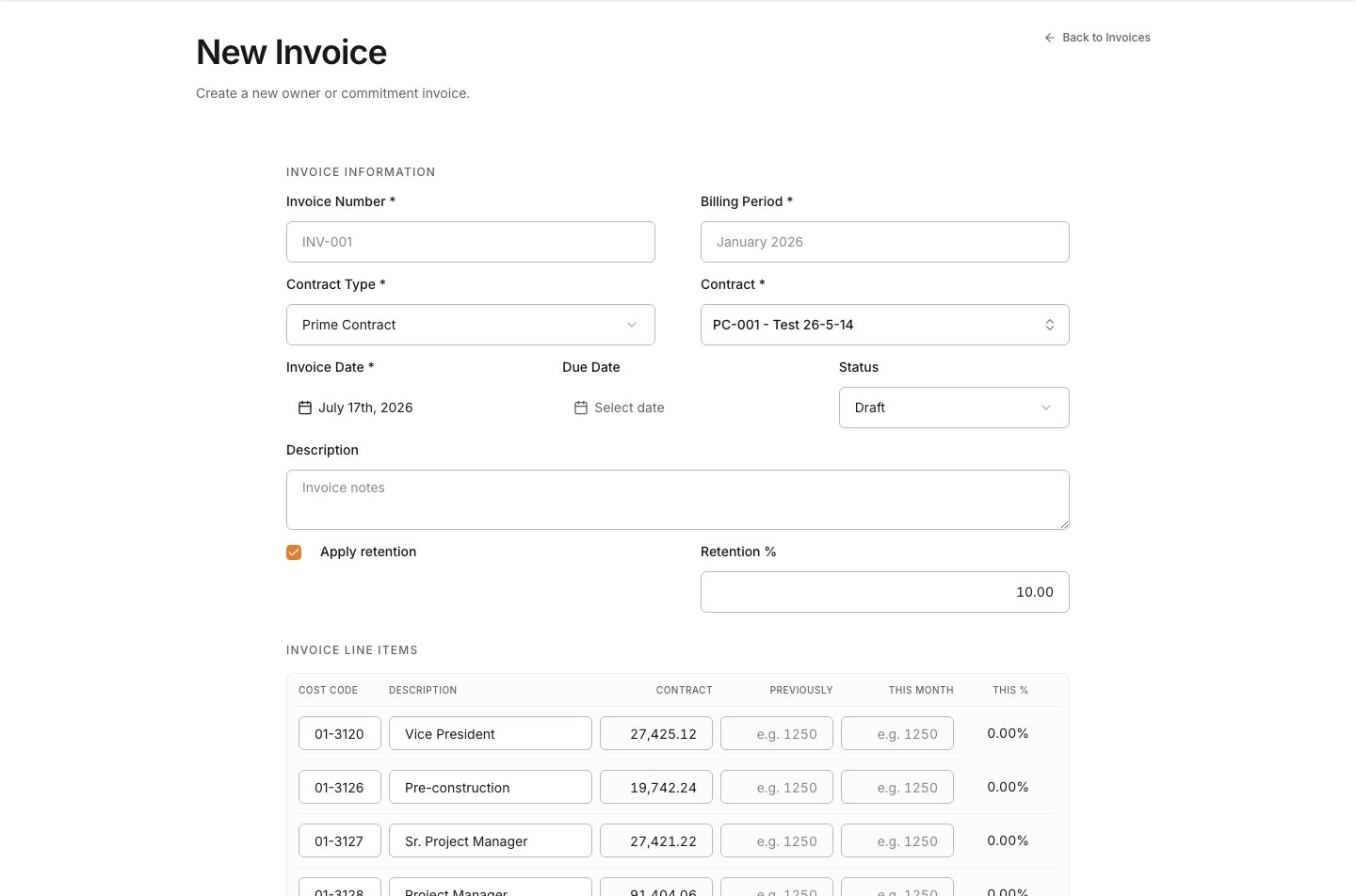
2
Enter the invoice information
Fill out the billing header and make sure the invoice points to the right owner contract.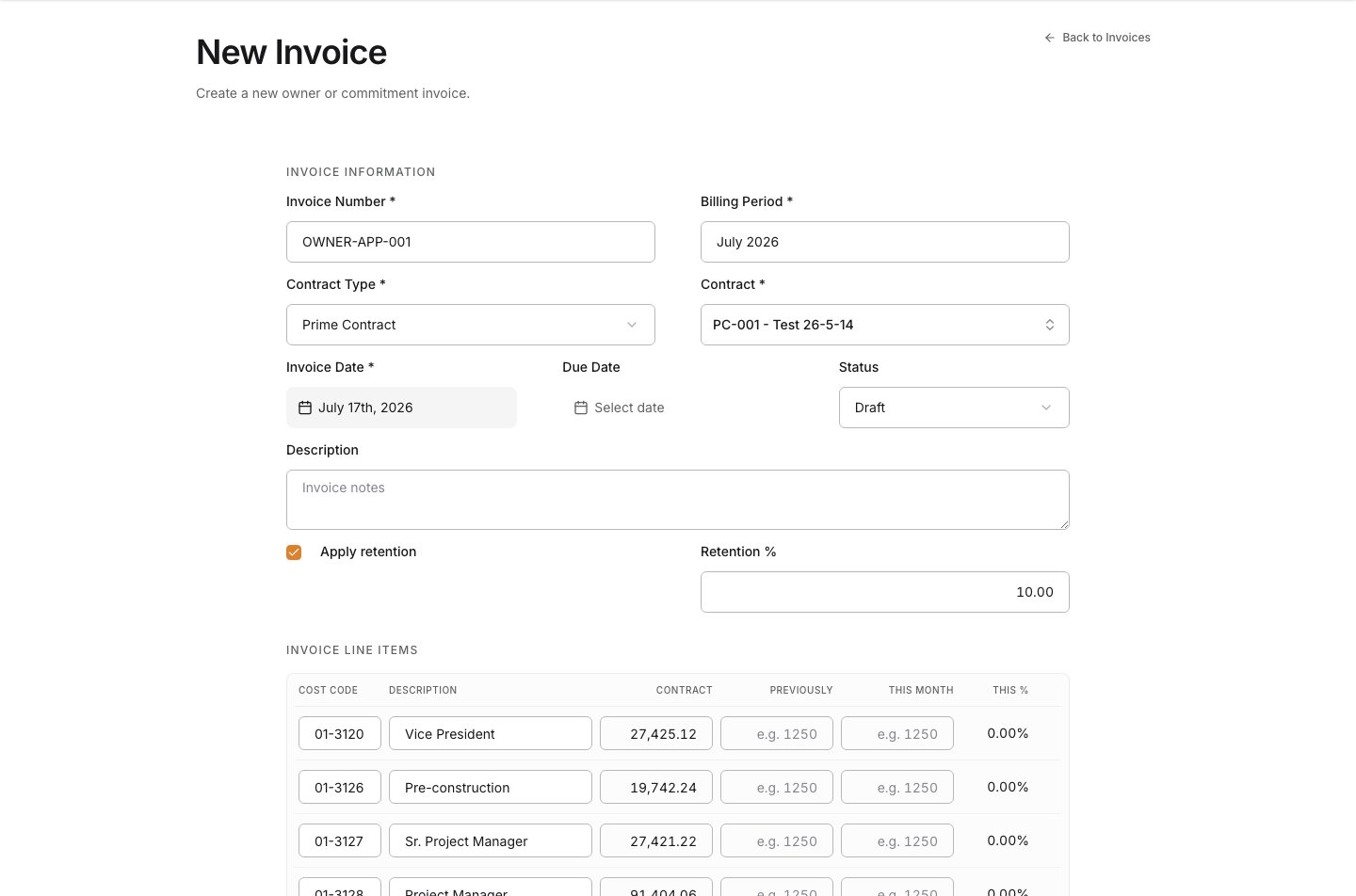
3
Review dates, status, and notes
Confirm the invoice date and due date, set the current status, and add notes for the billing package if needed.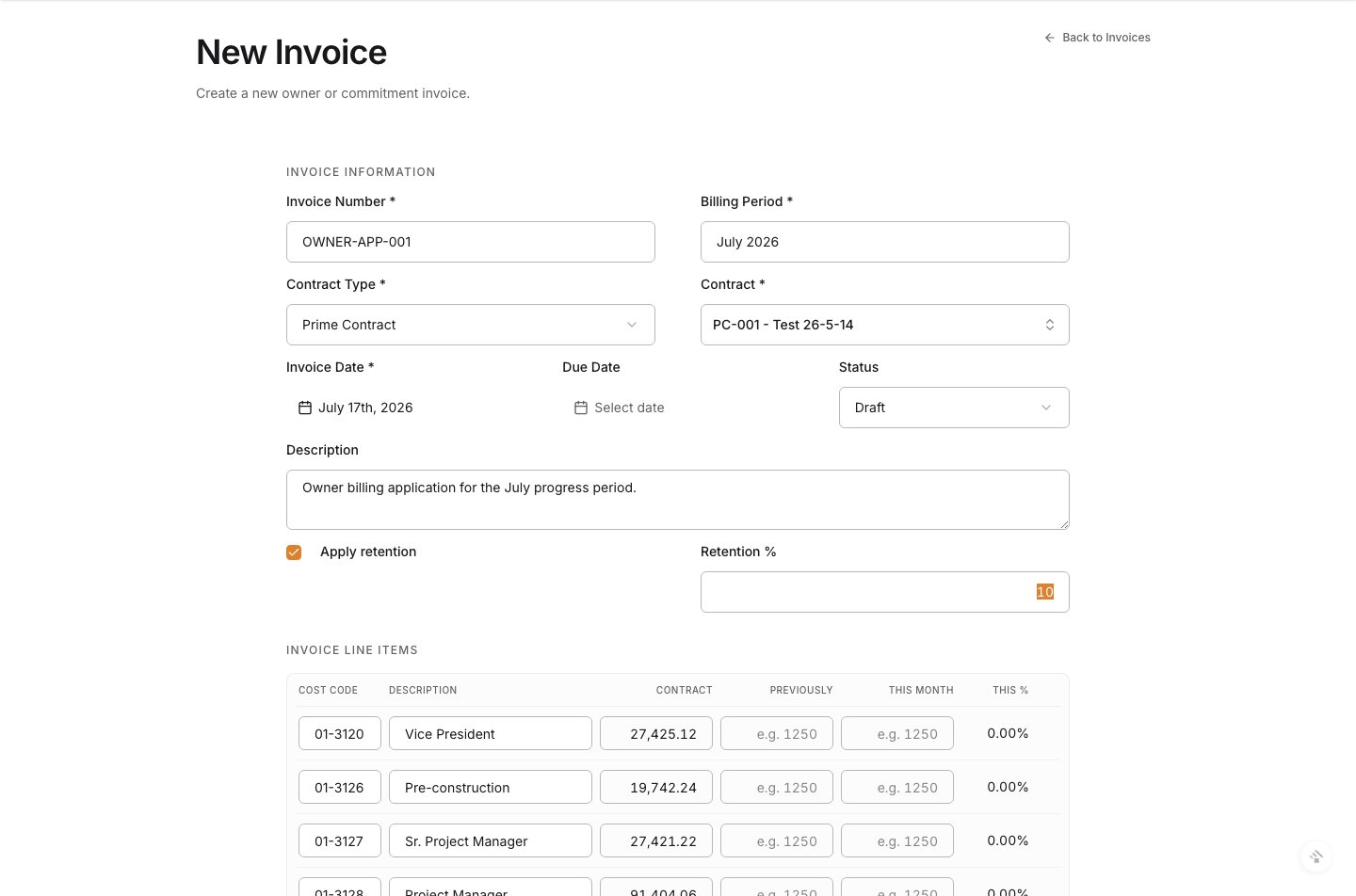
4
Enter the invoice line-item values
Enter or review the billing values for the current period. The example shown bills $15,000 this month against a $50,000 line with $10,000 previously billed.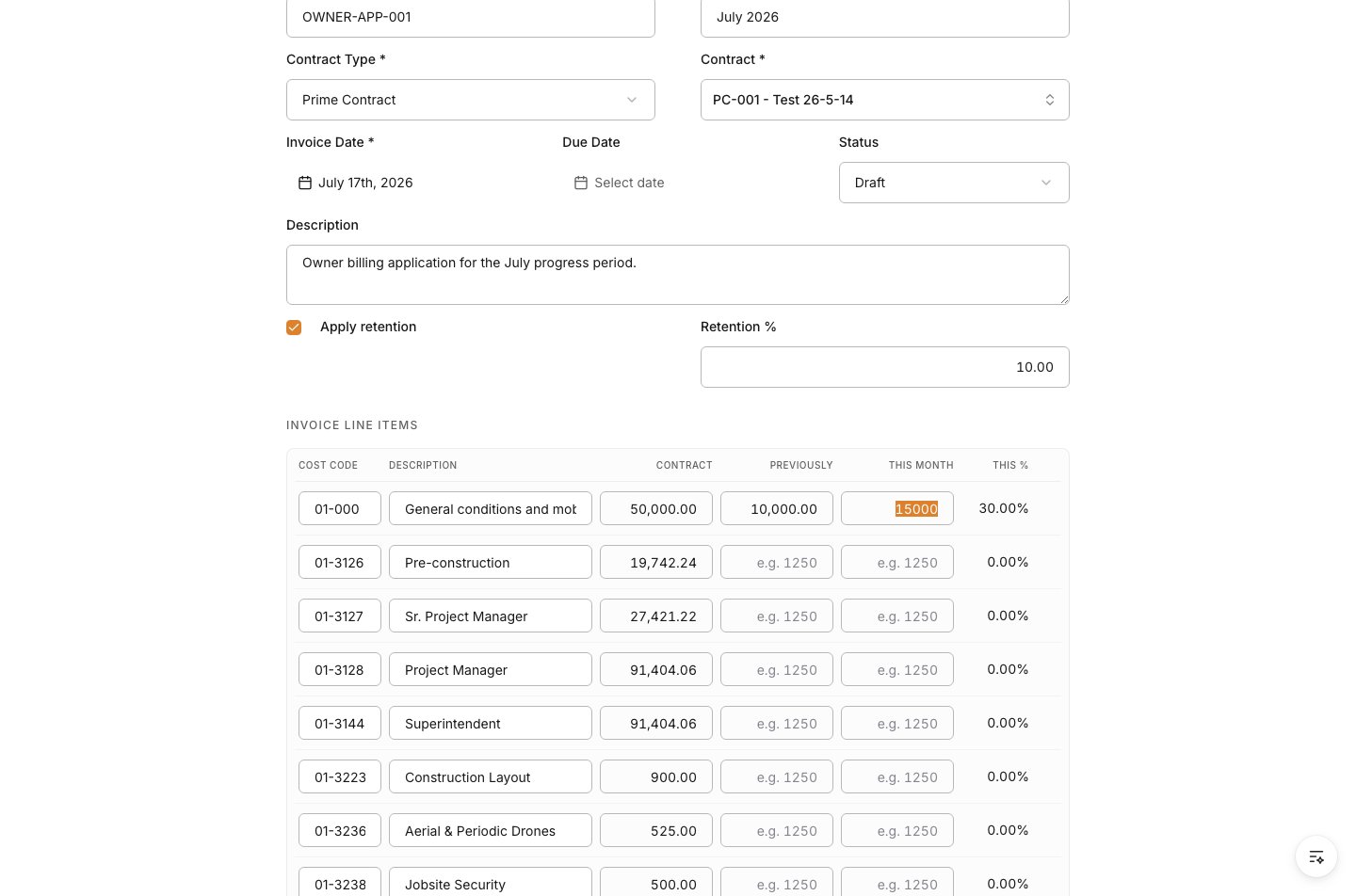
5
Review the invoice summary
Confirm the summary matches the billing package you intend to submit. In the example, current billing is $15,000, retainage is $1,500, and net due is $13,500.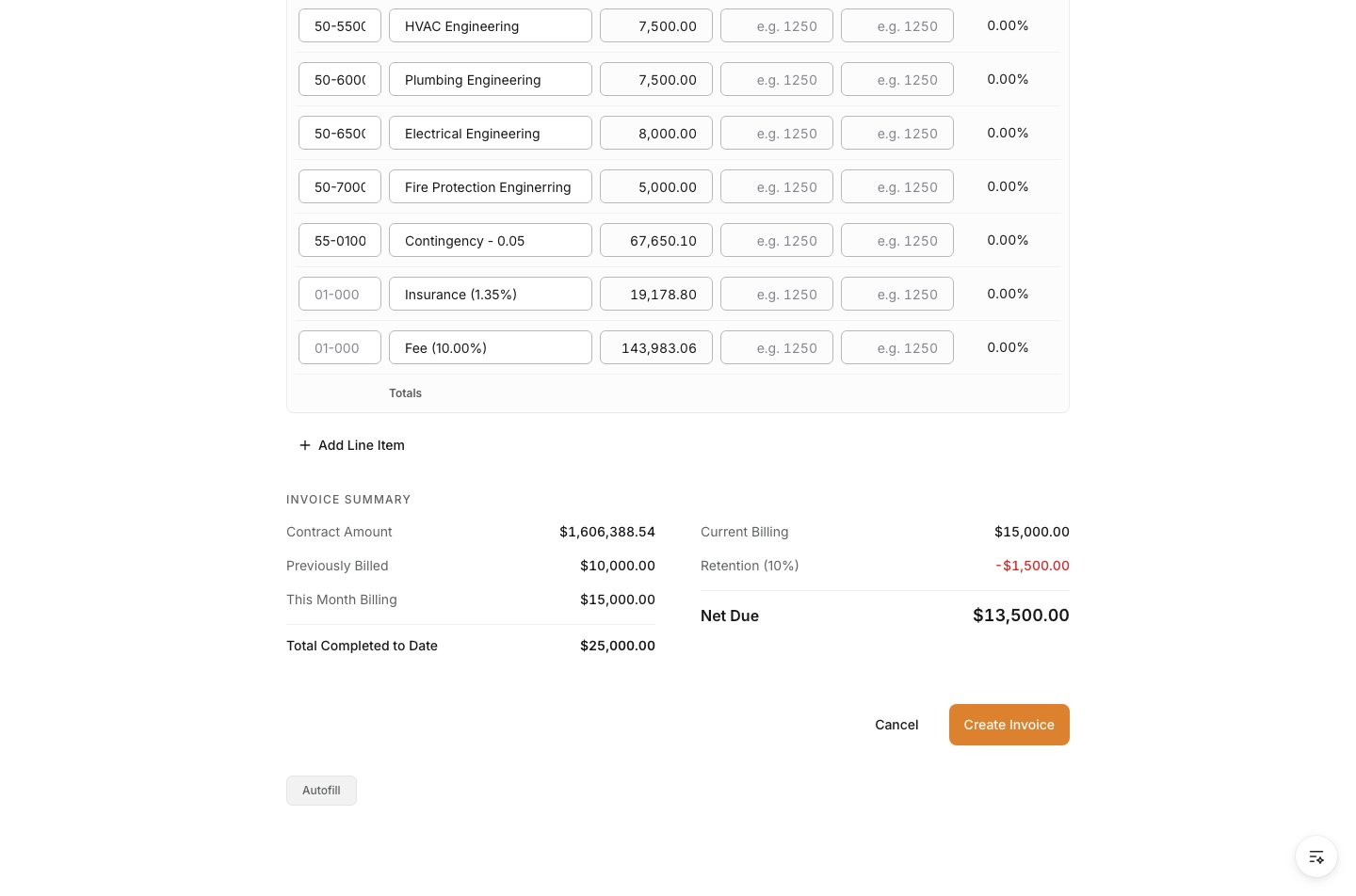
6
Create the invoice
Review the form, then click Create Invoice.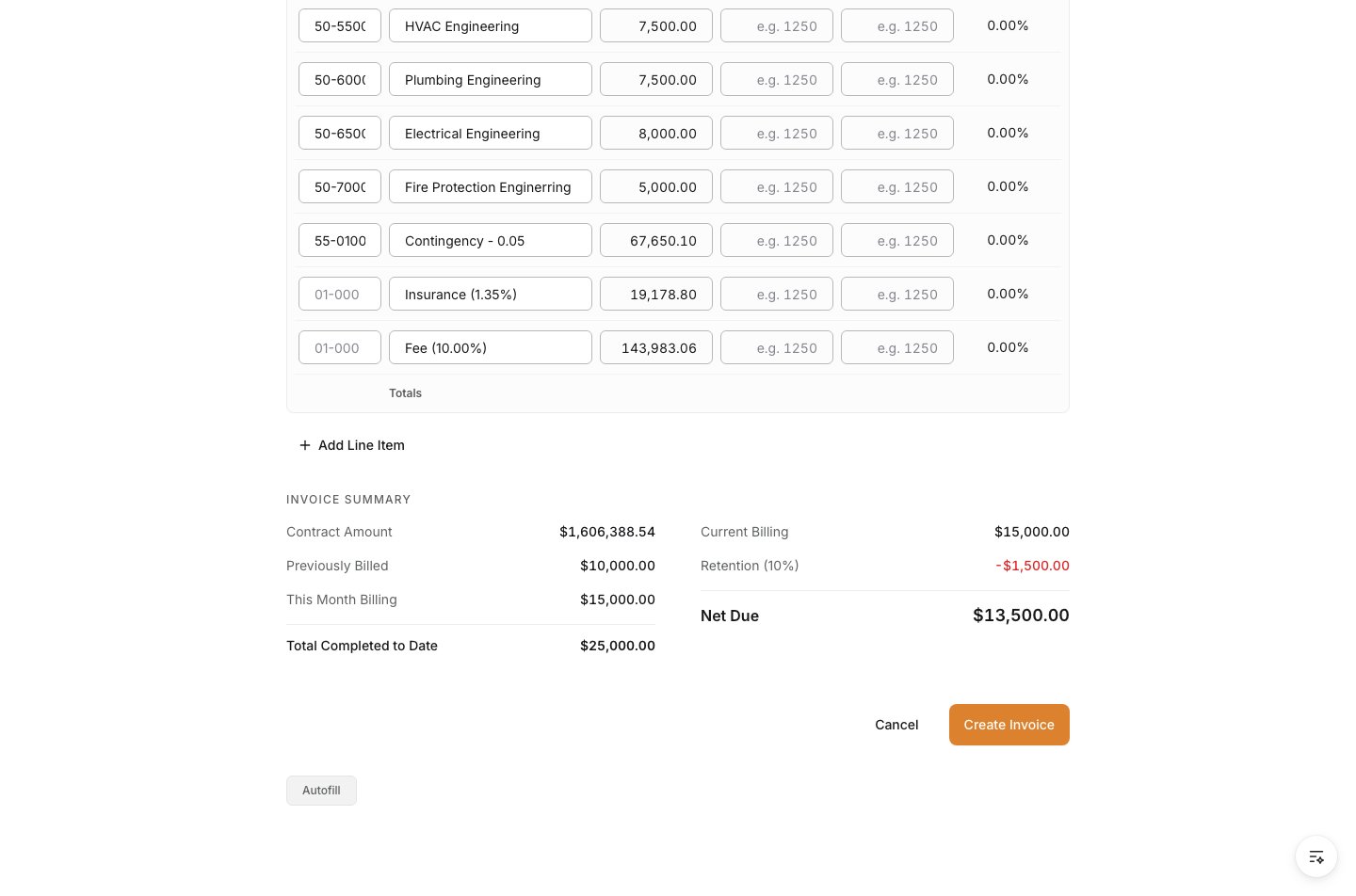
Verify the result
Confirm the owner invoice is saved against the correct prime contract and that the current billing, retention, and net due values match the invoice package you intended to create.Troubleshooting
- The invoice is tied to the wrong contract: Correct the owner contract before the invoice is shared or submitted.
- The billing totals do not match expectations: Review previously billed and current-period values line by line.
- The SOV lines do not match the billing package: Update the prime contract SOV before creating the invoice.