Have Ask Alleato draft an Outlook email reply you can review, edit, and send yourself.

1. Open the assistant

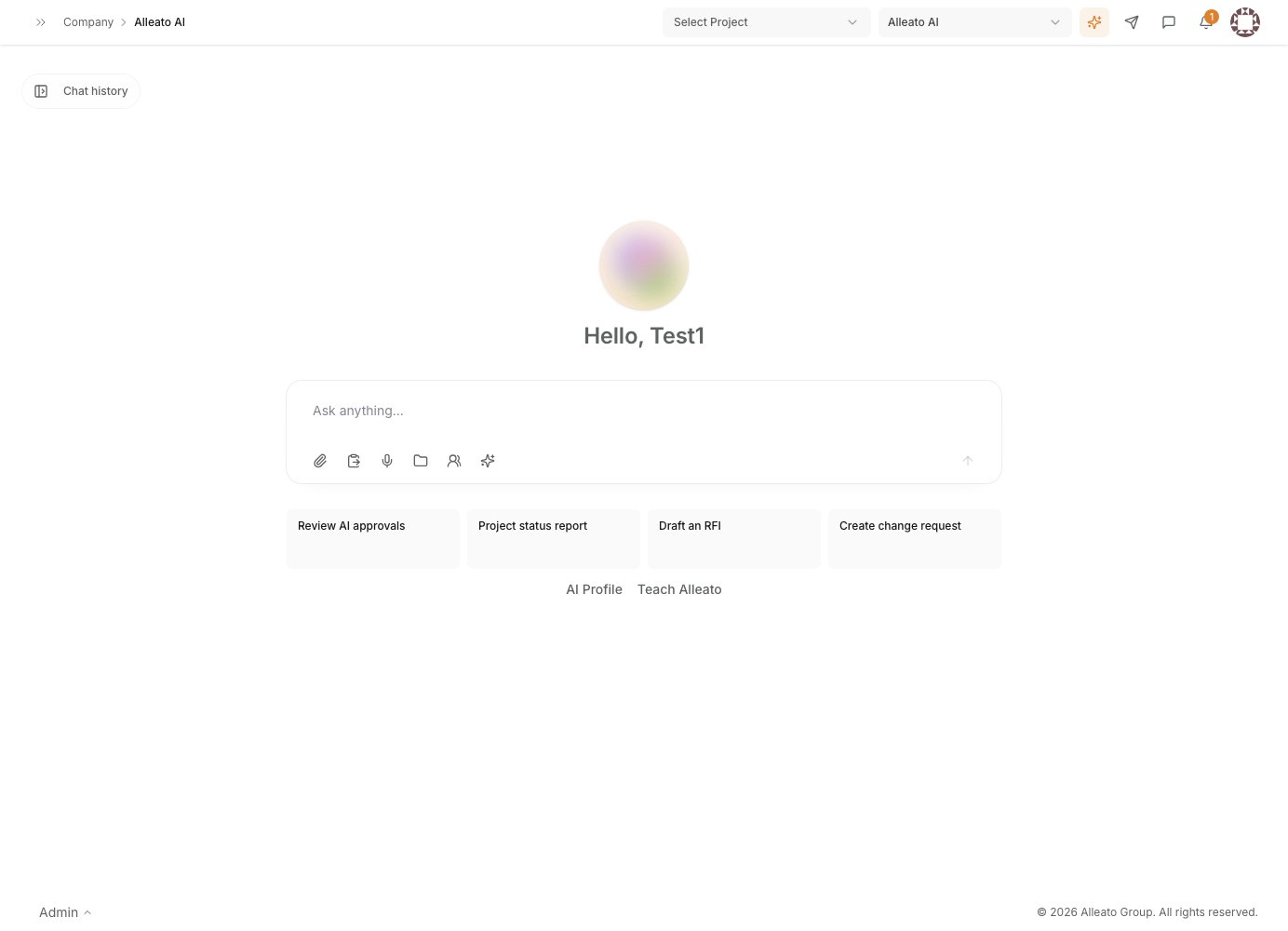
Open Ask Alleato from the main sidebar, or press ⌘I (Mac) / Ctrl+I (Windows) to open the floating pill from anywhere in the app. Expected result: The chat input is ready for your request. The Ask Alleato assistant
2. Ask the assistant to draft the email

Describe the message you want in plain English, including the recipient and the point. For example: “Draft a reply to the latest message from Acme Mechanical letting them know the COR is approved.” The assistant pulls the relevant context from your project data to ground the draft. Expected result: The assistant generates a draft email based on your request.

3. Review the draft

Read the generated draft in the chat. The assistant produces the draft for you to review; it never sends, approves, or signs on your behalf. Expected result: You have a complete draft to evaluate before anything leaves your inbox.

4. Refine the wording

If the tone or content needs adjusting, ask the assistant to revise it (for example, “make it more formal” or “add the updated schedule date”). Expected result: The assistant returns an updated draft reflecting your changes.

5. Send the email yourself

Use the draft to send the reply from Outlook. You remain in control of the actual send — the assistant only prepares the text. Expected result: The email is sent by you, with the content you approved.

6. Give feedback on the draft

After using a drafted reply, mark it as “used as-is”, “edited”, or “rejected” through the email-draft feedback path. This trains the email model to draft better next time. Expected result: Your feedback is recorded and used to improve future email drafts.